.png?width=189&height=28&name=Multihub%20Logo%20Color%20(1).png)
Threads is VibeSites' built-in commenting tool. Use it to leave feedback pinned to specific elements on your site — the Repli team is notified automatically and will begin working on it. You'll receive an email when they reply or mark your thread resolved.
Any MultiHub user can access Threads directly from their VibeSite preview — no additional setup required. Note: you must have at least one active VibeSite to use Threads.
Before you start: Log in to MultiHub → open your Property → go to the VibeSites tab → click Preview.
- Open Threads: Click the chat icon in the top right corner of your VibeSite preview.
- Start a new thread: Click + New Thread. Keep related feedback in the same thread to stay organized.
- Pin your comment to the page (recommended): Click Pin to Page and select the specific element — a headline, image, button, or section — your feedback refers to. This removes any ambiguity about what needs to change.
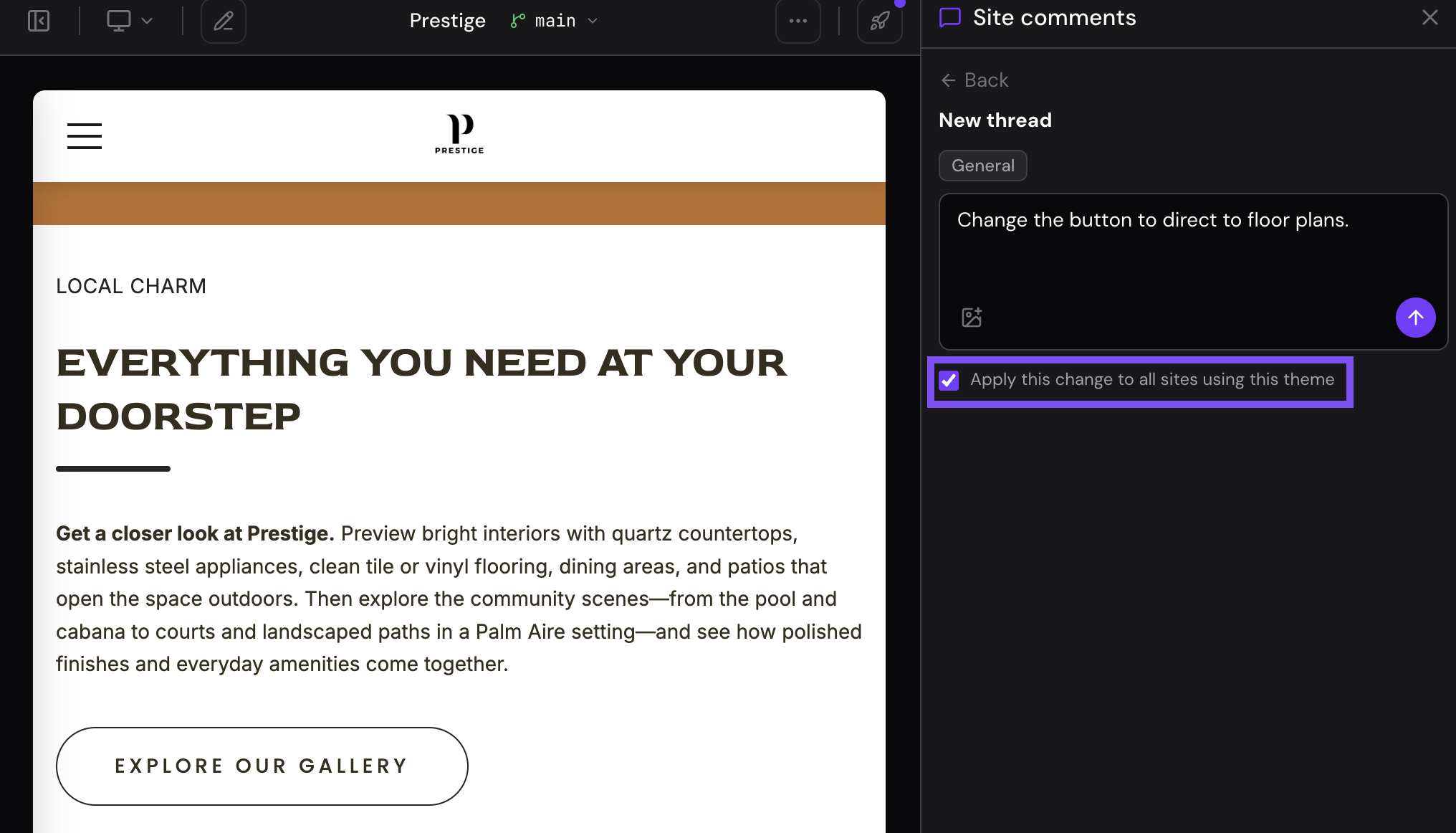
- Write your comment: Be specific. Describe what needs to be updated, why, or what you'd like to see instead.
- Theme-wide requests: If you'd like the change to be applied to all of your sites on that theme, select the Apply theme-wide checkbox.
- Post it: Click Post Thread. The Repli team is notified instantly and will begin working on your request.
💡 Pro tip: One thread per topic keeps things clean and makes it easier to track what's been addressed.