.png?width=189&height=28&name=Multihub%20Logo%20Color%20(1).png)
Need to update your property website without waiting on a developer? VibeSites Editor Mode lets you make changes directly — edit text, adjust styling, swap images, and work with dynamic property data synced from MultiHub. No coding required.
How do I enter Editor Mode?- Go to your VibeSites dashboard and select the property whose website you want to edit.
- Click Open Website to open the property website in your browser.
- Log in to your VibeSites account using a role that has editing permissions (such as Admin or Editor).
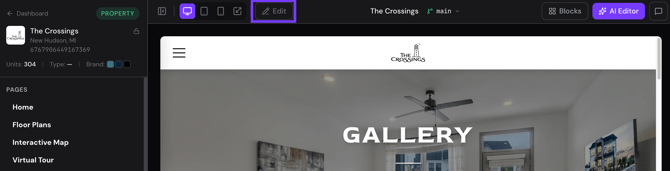
- In the top toolbar, click the Edit button (pencil icon)
- The page reloads in Editor Mode. The toolbar updates and all editable content blocks are outlined in blue, indicating they are now selectable and editable.
What is the difference between MultiHub and custom content?
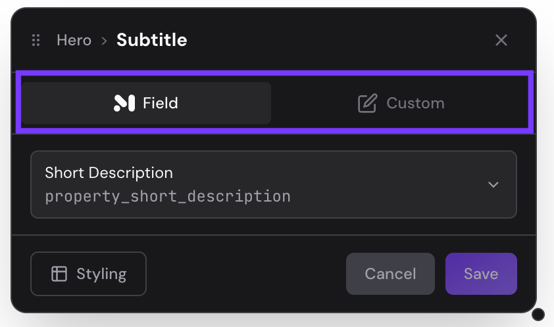
In Editor Mode, click any content block to see where its content comes from. Content is either pulled from a field mapped to your property's MultiHub profile, or it is custom text you have entered manually. To change the source, select the MultiHub field you want to use, or click Custom to write and save your own copy.
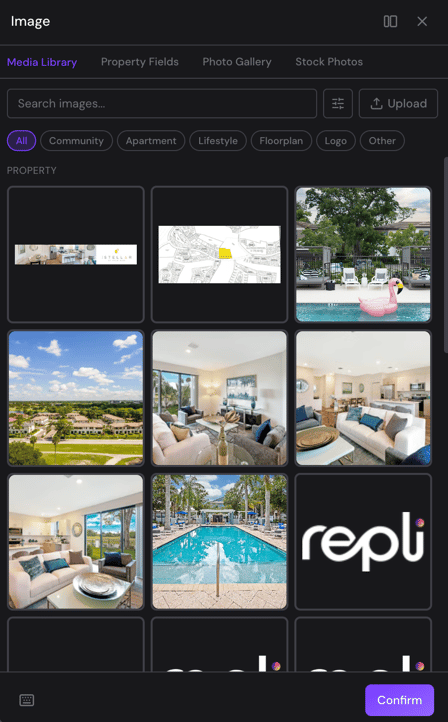
How do I swap images in VibeSites?To swap an image in VibeSites, enter Editor Mode and click any image to see its current source — either your Media Library, Photo Gallery, or a MultiHub Collection. From there, you can replace it with another image from your Media Library, choose a stock photo, or upload a new image directly in the editor. Select the new image and click Save to apply your changes.
Note: Changes made in Editor Mode are not published automatically. After editing, click Deploy in the top toolbar to make your updates live on the site.