.png?width=189&height=28&name=Multihub%20Logo%20Color%20(1).png)
Page settings in VibeSites let you control how each page is named, found, and displayed — independently from the rest of your site. Changes to page settings require a redeploy to go live.
To access page settings:
- In MultiHub, go to your property workspace → VibeSites tab → Preview.
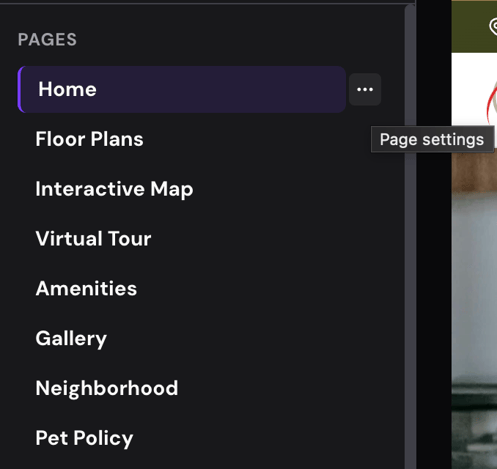
- In the left-hand navigation panel, hover over the page you want to update.
- Click the three dots (...) that appear to the right of the page name.
- The Page Settings panel will open.
From here you can edit:
- Page Name — the label shown in your site's navigation menu.
- URL Path — the page's URL slug (e.g.
/floor-plans). - SEO Title — the title that appears in search engine results for this page. Supports dynamic property tokens like
and. - SEO Description — the description shown under the page title in search results. Also supports dynamic tokens.
- Visible in Navigation — toggle on or off to show or hide this page in your site's navigation menu.
- Exclude from Search Engines — when enabled, adds a noindex tag to the page and removes it from sitemaps and search engine indexing.
To push your changes live:
After saving, redeploy your site. See How to Deploy Site Changes for instructions.
💡 Not sure which settings to change? Use Threads to leave a comment on the page and the Repli team will advise.