.png?width=189&height=28&name=Multihub%20Logo%20Color%20(1).png)
Your property website includes a Floor Plans page that showcases available unit types to prospective residents. Floor plans are managed through two data sources: a PMS source (automatically synced from your property management system) and a Custom collection you maintain manually. Use the source dropdown to switch between them.
The Custom collection also drives the bedroom counts and filter options displayed in your site's contact forms — so keeping it accurate has an impact well beyond the Floor Plans page.
What are the floor plan data sources?
There are two floor plan data sources:
- PMS — Synced automatically from your connected property management system. No manual input required.
- Custom — A collection you create and maintain manually. This source also controls the bedroom filter options shown in your site's contact forms.
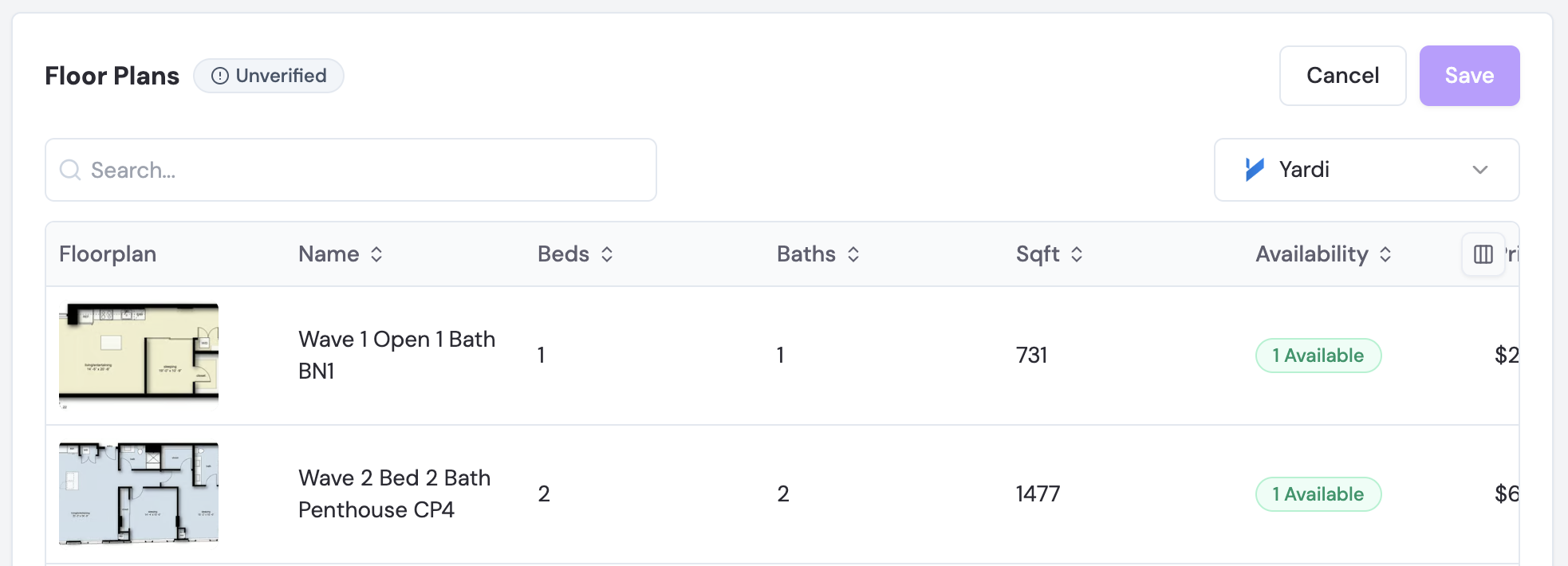
How do you pull floor plans from your PMS?
- Select PMS from the source dropdown to view floor plans synced from your property management system.
- Review the list to confirm your floor plans are displaying correctly. If no plans appear, verify that your PMS integration is active and has synced successfully. If the issue persists, check your PMS integration settings or contact your account administrator.
How do you add floor plans to your custom collection?
- Select Custom from the source dropdown.
- Import existing floor plans — select one or more floor plans already synced from your PMS, then click Import to add them to your custom collection.
- Add a new floor plan manually — click Add Floor Plan, then enter:
- Floor Plan Name (e.g., A1, Studio, One Bedroom)
- Available Units
- Bedrooms and Bathrooms
- Min/Max Square Feet
- Min/Max Price ($)
- Floor Plan Image
- Click Add Floor Plan to save the new floor plan to your custom collection.
How do you edit or delete a floor plan in the custom collection?
To modify or remove a floor plan from your Custom collection, select Custom from the source dropdown to locate the plan, then use the available edit or delete actions on the floor plan entry. Deleting a custom floor plan removes it from the Floor Plans page and from the bedroom filter options in your contact forms.