.png?width=189&height=28&name=Multihub%20Logo%20Color%20(1).png)
How does favicon priority work in VibeSites?
VibeSites uses a first match wins priority order to determine which favicon displays on a site:
- Custom image or mapped data field — set directly via Set Favicon
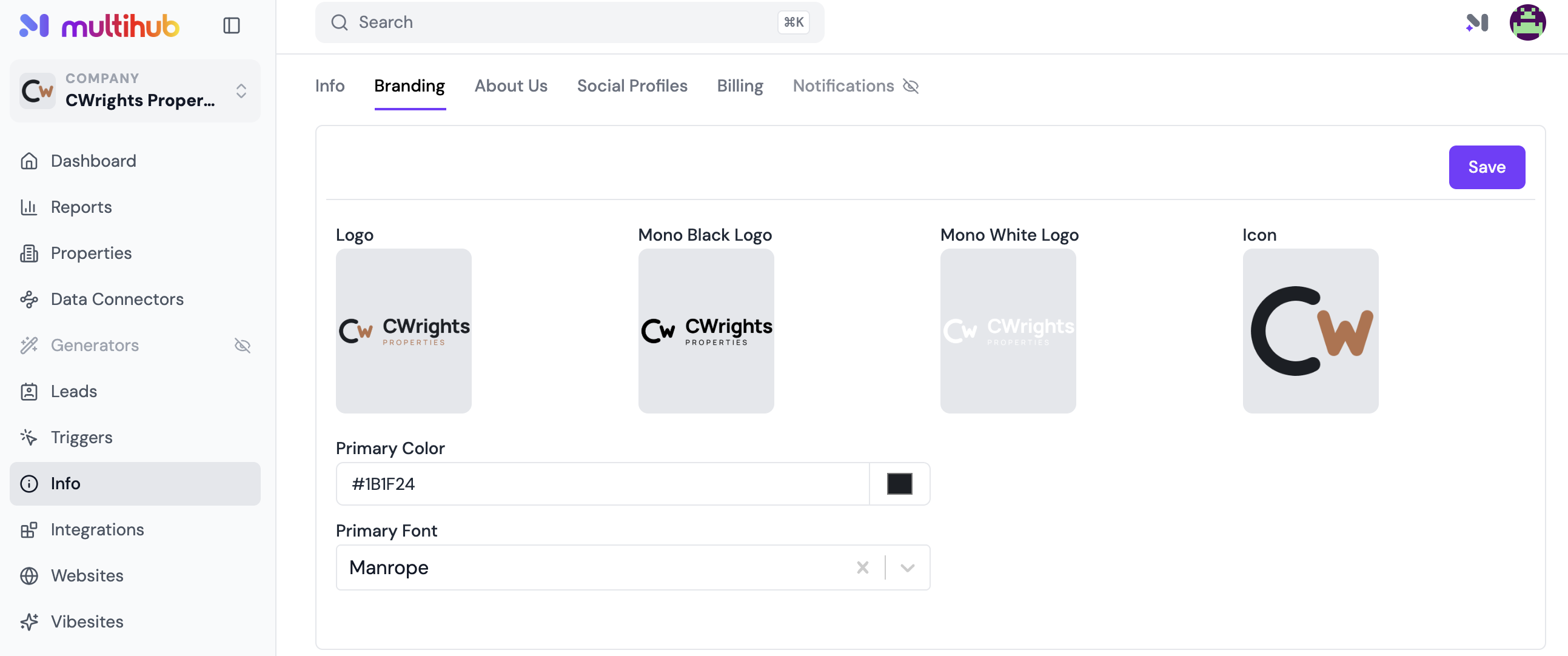
- Company icon — set in Company Info > Branding
- MultiHub default — The company icon used as a fallback when nothing else is configured
Settings on a company theme automatically apply to every property site beneath it, unless a property has its own favicon configured. You can always check the live priority order for any site in the tooltip on the MultiHub Settings page. If no favicon source is configured at any level, the browser falls back to its own default icon.
Supported formats: Favicons should be square images in .ico, .png, or .svg format. A size of 32×32 px or 64×64 px is recommended for best results.
Configuring each favicon source
Set the company favicon
-
In MultiHub, go to Company Info > Branding to set a company-wide icon. Once set, company theme sites will use it automatically.
Set up field mapping for property-level favicons
- Go to VibeSites and open the Company Theme
- Click Settings
- Map the favicon to the property_fav_icon field.
- Click Save to apply the mapping. This allows each property to use its own favicon and falls back to the company icon when the field is unset.
Change individual property favicons
-
In MultiHub, go to your Property's Dashboard
-
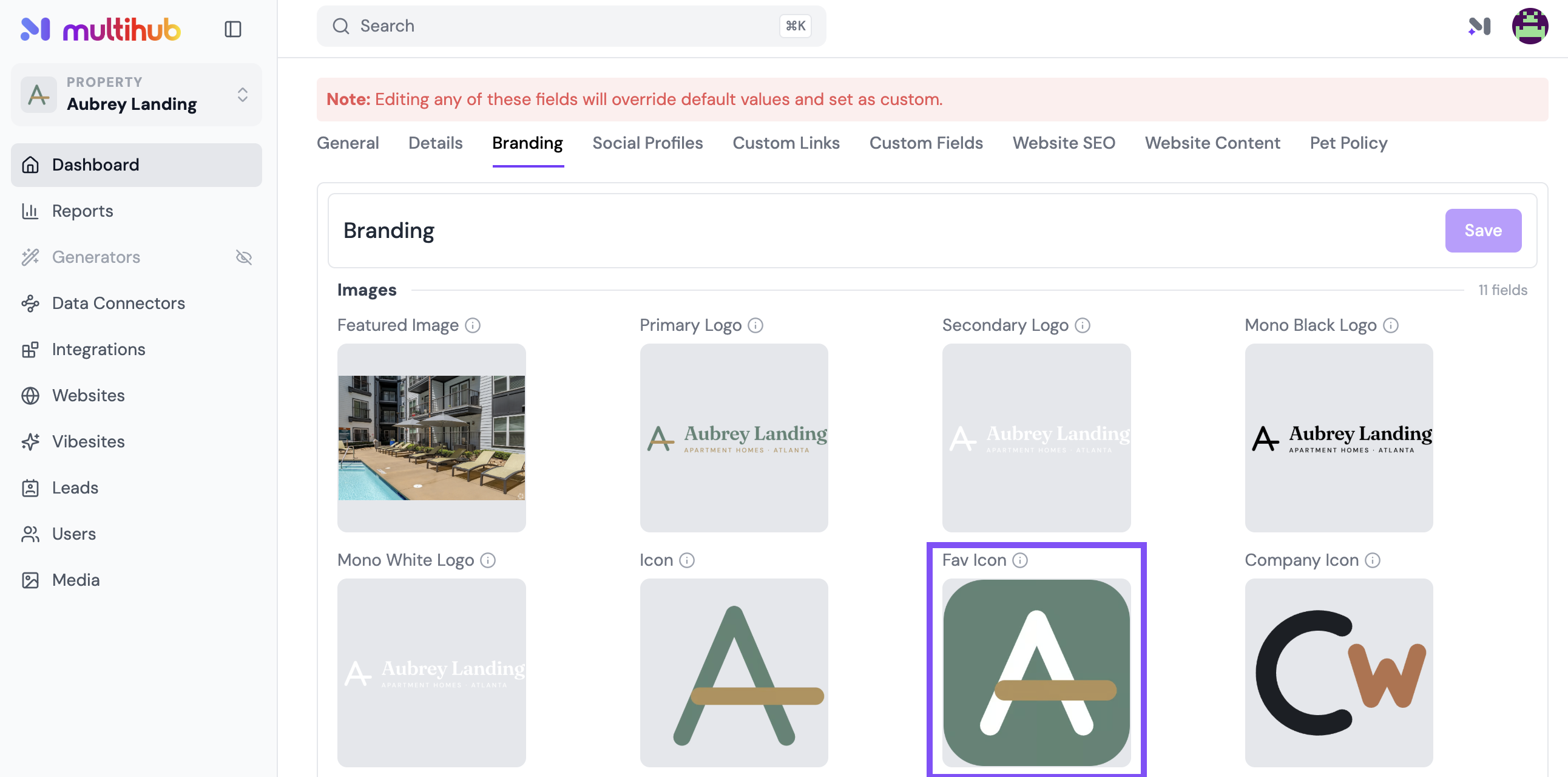
Navigate to Edit Property > Branding > Fav Icon and upload a favicon for the property.
-
Click Save. The favicon is now reflected in that property's Settings.
💡 Tip: Setting up many properties? Use the Company > Properties table to bulk-edit favicons across properties at once.