.png?width=189&height=28&name=Multihub%20Logo%20Color%20(1).png)
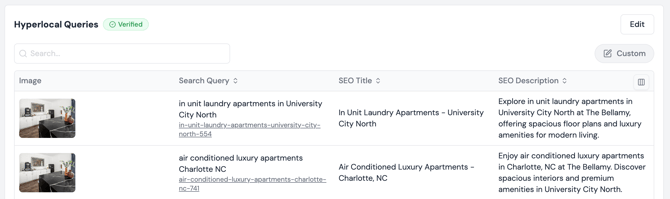
The Hyperlocal Queries collection is a set of location- and amenity-specific search queries that MultiHub uses to generate SEO-optimized landing pages for your property. Each query produces a unique slug, SEO title, and SEO description targeting renters searching in your area.
If Repli handles your SEO, our Organic Media team manages this collection for you. The queries here are part of a keyword strategy they build and maintain, and edits made outside of that strategy can undermine it. If you need a query added or removed, contact your Organic Media team instead of editing the collection directly.
If you do not have SEO with Repli, this collection is yours to manage. The rest of this article walks you through how to add, generate, and review your queries.
How to find the Hyperlocal Queries Collection
- Log in to MultiHub at console.multihub.io.
- Set the workspace selector to Property and choose the property you are working on.
- Open the property Dashboard.
- Scroll through the Property Profile to find the Hyperlocal Queries collection.
Adding queries
Option 1 — Generate from keywords
- Click Edit and change the data source to Custom.
- Click Add Hyperlocal Query.
- In the Keywords field, type a keyword phrase and press Enter to add it. You can paste multiple keywords at once and they will auto-expand into separate entries.
- The counter below the field shows how many pages will be generated — one page per keyword.
- Click Generate.
MultiHub writes the slug, SEO title, and SEO description for each keyword you entered.
Tips for writing good keywords. Use the phrasing a renter would actually type: an amenity or feature plus a location. "apartments with pool Fort Lauderdale" works; "pool" alone does not.
Option 2 — Manual Entry
Click Manual Entry in the same modal to write the search query, slug, SEO title, and SEO description yourself instead of generating them. Use this when you need exact control over the copy.
Option 3 — Import from Source
Use Import from Source to pull queries in from an existing source (existing generated queries) rather than building the list from scratch.
Reviewing and editing queries
After generating, the collection opens in a table view with columns for Image, Search Query, SEO Title, and SEO Description
What to check on each row:
- The search query is a phrase renters actually search, and is accurate to the property (do not target an amenity the property does not have)
- The SEO title and SEO description are accurate, on-brand, and free of Fair Housing issues
- The image is set and relevant
Use the Search box at the top of the table to find a specific query in a long list. Click the Search Query or SEO Title column headers to sort.