.png?width=189&height=28&name=Multihub%20Logo%20Color%20(1).png)
How to Leave a Company Theme Comment in Threads
A Company Theme is the shared site design applied to every property in MultiHub. To request a change that affects all properties at once, leave a theme-level comment in Threads. You'll receive an email notification when the Repli team replies or marks your request as resolved.
How do you access your Company Theme to leave a comment?
There are two ways to open your Company Theme and leave a comment that applies to all properties.
Option 1: How do you comment via the Company Theme Thread?
- In MultiHub, go to your Company → VibeSites → Themes.
- Select your theme name and click Open Preview.
- In the VibeSites editor, click the Company badge (your company logo) to open Threads.
- Leave your comment in Threads. The Repli team will be notified instantly.
Any comment left in the Company Theme applies to all properties.

Option 2: How do you comment via a Property VibeSite Thread?
- Open the VibeSites editor for any of your property sites.
- Leave your comment using Threads.
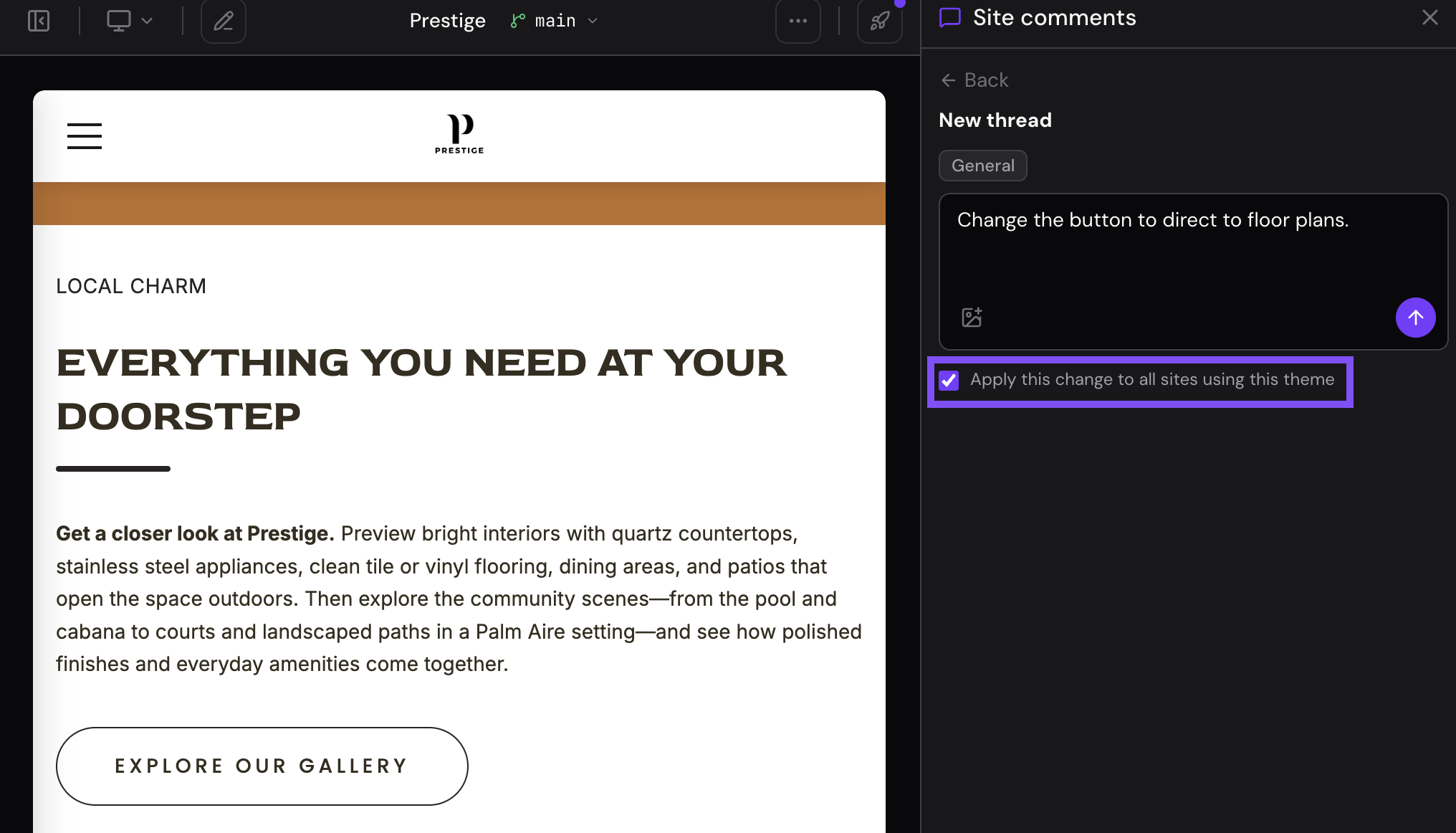
- In the Threads panel, select the checkbox to apply this comment to all sites using this theme.
💡 New to Threads? See How to Leave Site Comments Using Threads for a full walkthrough of how to write, pin, and post a comment.