.png?width=189&height=28&name=Multihub%20Logo%20Color%20(1).png)
Your VibeSite Gallery page showcases property photos for prospective residents. The images displayed there are controlled through the Photo Gallery Collection in your MultiHub Property Dashboard.
MultiHub is the single source of truth for your Gallery page. If photos are missing or incorrect on your live site, check MultiHub first — it is almost always a data issue rather than a site issue.
To access your Photo Gallery Collection:
-
In MultiHub, go to your Property → Dashboard
-
Scroll down to the Photo Gallery section, and click Edit
Understanding Your Data Sources
Your gallery pulls images from every platform connected to your property. Use the source dropdown to filter by origin. Available sources depend on which platforms your property has connected, and may include:
- Apartments.com — Photos scraped from your Apartments.com listing.
- Google Places — Photos pulled from your Google Business Profile.
- Generator — AI-generated lifestyle and amenity images.
- PMS — Photos synced from your property management system.
- Custom — Photos you have uploaded directly in MultiHub.
If you want the ability to edit your photo gallery, be sure to use Custom as your data source.
💡 Custom photos always take priority. Whatever you add to your Custom collection is shown first on your Gallery page — above any photos pulled automatically from connected sources.
How do I build a custom photo collection?
Your Custom collection is your curated set of photos — what you add here is what appears first on your Gallery page. You choose exactly which photos to include, whether that's pulling from your connected sources or uploading new ones entirely.
- Select Custom from the source dropdown.
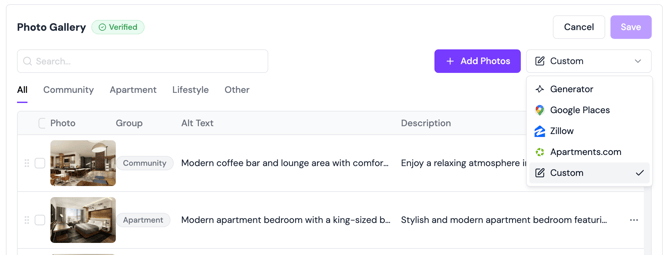
- Click + Add to add photos. You have two options:
-
Pull from a connected source — browse photos already associated with your property from Apartments.com, Google Places, your PMS, or any other connected platform, and select the ones you want on your Gallery page.
-
Upload new photos — add photos that aren't in any connected source.
-
- Assign a Classification to each photo so it appears in the right section of your Gallery page. Click the Classification field on the photo and select the category that best describes it (for example, Exterior, Interior, Amenity, or Floorplan). Each classification maps to a named section on your Gallery page.
Reordering Photos in a Custom Collection
The order photos appear in your Custom Collection is the order they display on your Gallery page. To change the order:
- In the Custom collection, click and hold the drag handle (⠿) to the left of any photo.
- Drag it to the desired position and release.
- Click Save when done.
How do I edit or remove a photo from my custom collection?
- Click the three dots (...) to the right of any photo in the list.
- Select Edit to update the title, classification, or alt text — or Delete to remove it.
- Click Save when done.
How do I push gallery changes to my live site?
After saving, redeploy your site. See How to Deploy Site Changes for instructions.