.png?width=189&height=28&name=Multihub%20Logo%20Color%20(1).png)
Your VibeSite has a neighborhood map that showcases nearby points of interest to prospective residents. The POIs displayed there are controlled entirely through the Neighborhood POIs Collection in your MultiHub Property Dashboard.
To access Neighborhood POIs:
In MultiHub, go to your Property → Dashboard, find the Neighborhood POIs section, and click Edit.
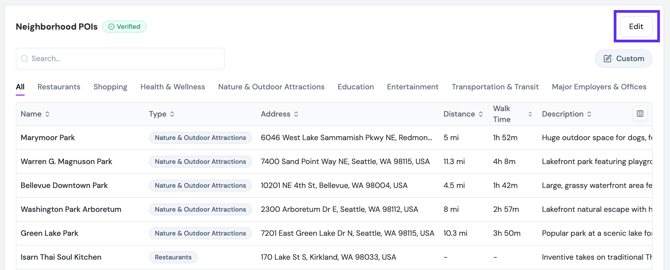
What data sources can my neighborhood POIs pull from?
Your POIs can pull in from every platform connected to your property. Use the Collection dropdown to filter by origin. Available sources depend on which platforms your property has connected, and may include: Apartments.com, Google Places, Repli's Generated content, or a Custom Source you create. If you want the ability to edit your POIs, be sure to use Custom as your data source.
How do I add POIs to my custom collection?
Your Custom collection is your curated set of neighborhood POIs — what you add here is what appears on your site's neighborhood map. You choose exactly which POIs to include, whether that's importing from your connected sources or adding new ones entirely.
- Select Custom from the Collection dropdown.
- Import existing POIs — select POIs already sourced from Apartments.com, Google Places, or Repli's Generator, and import them into your custom collection.
- Add a new POI manually — click Add Neighborhood POI, then:
- Enter a Search Query to search near your property (e.g., "Target").
- Select a POI Type classification: Restaurants, Shopping, Health & Wellness, Nature & Outdoor Attractions, Education, Entertainment, Transportation & Transit, or Major Employers & Offices.
- Choose the specific location from the search results.
- Click Save to finalize your custom POI collection.
How do I edit a POI in a custom collection?
- Click the three dots (...) to the right of the POI's row.
- Select Edit to open the Edit Neighborhood POI panel, where you can update things like:
- POI Name and Type (classification)
- Address
- Short Description and Long Description
- Phone Number and Website URL
- Directions Map URL
- Distance details: Miles Away, Walk (minutes), Drive (min), Bike (min)
- Featured Image URL
- Day/Night Filter
How do I push my neighborhood POI changes live?
After saving, redeploy your site. To do this, navigate to your Property → Dashboard in MultiHub and click Deploy to push your changes live. For detailed steps, see How to Deploy Site Changes. See How to Deploy Site Changes for instructions.